How bulk delete multiple photos from iphone 6


Turns out you can no longer delete photos from your iPhone on your PC…

THIS IS A FULL “STEP BY STEP” GUIDE TO BULK DELETING A SELECTION OF MULTIPLE PHOTOS AND VIDEOS FROM YOUR IPHONE

PLEASE MAKE SURE YOU HAVE MADE ANY BACKUPS OF PHOTOS YOU WANT TO KEEP BEFORE DELETING THEM!

1. Open Photos App

2. In camera roll make sure you are in “Albums” (bottom right)

3. Scroll up/down to where you want to start deleting from (if you want to keep your most recent photos and videos)

4. Tap “Select” (top right). Then tap the last photo you want deleted and drag your finger across or up (to select more than one photo)

How to bulk delete multiple photos from iphone 6How to bulk delete multiple photos from iphone 6
5. While still holding your selecting finger on the screen, Tap the top of the screen (where the clock is) with another finger.
This will automatically scroll you all the way up to the older images at the top of your camera roll and select everything in between.

How to bulk delete multiple photos from iphone 6
6. Tap delete (Bin / Trashcan Icon) and confirm, wait a few seconds and the photos will be deleted (almost)

How to bulk delete multiple photos from iphone 6
Naturally you would be expecting this to have removed the photos and videos freeing up valuable space for more lovely photos, videos and apps wouldn’t you?

WRONG! THERE ARE A FEW MORE STEPS TO ACTUALLY DELETE THEM…

7. Tap “< Albums” (top left) and scroll to “Recently Deleted”. Then tap “Select” (top right)

How to bulk delete multiple photos from iphone 6How to bulk delete multiple photos from iphone 6
8. Tap “Delete All” (bottom left) and then confirm you really want to delete the photos completely.

IMG_2308IMG_2309

Of course Apple have made this SO intuitive you could have easily figured this all out for yourself, right? ;)

If this blog post has helped you please feel free to say thanks sharing it on twitter/facebook/whatever

If this helps you out please feel free to say thanks by clicking “Buy Me a Coffee” PayPal button in the sidebar (here) or via:https://www.paypal.me/AlanHart

Thank You

LG GPad 8.3 (V500) Tablet Not Turning On? Won’t charge? Appears Dead? Tried everything?

Thought my GPad had completely died, but it lives!

I tried everything i could on all the forums i could find when my LG GPad 8.3 V500 wouldn’t turn on

e.g.
Press and hold the power button,
Press and hold power and volume down together
plugging into a computer and running some LG software etc..

Despite my best efforts none of these thing bought my dead LG GPad V500 back to life.
Even when plugging the power cable in, nothing, not even a “charging” icon displayed.

I then found out that if you hold the power button for 20 seconds it’s the same as a battery pull (removing the battery)
So i did that and then plugged the charger into the Gpad again. Nothing… but then…
after a few minutes of being plugged in something appeared on the display…
…the charging icon!

After leaving to charge for 15 mins i was able to power it on again! (thought i’d leave it to charge for a bit to be on the safe side)

No factory resets, no taking the LG V500 apart to get the battery out, so simple!

Hope this helps you and saves you buying another tablet.

If this helps you out please feel free to say thanks by clicking “Buy Me a Coffee” PayPal button in the sidebar (here) or via:https://www.paypal.me/AlanHart

Thank You

DNS Dropping / Not Resolving – Draytek 2820 Router

Had an issue the last few weeks where DNS across the network would randomly just drop/timeout for a period of a few minutes to an hour or so.
Across the entire network (at around lunctime) users would suddenly be unable to access certain websites but strangely applications like skype / outlook etc would still function normally.

I quickly diagnosed that it was a DNS issue as normal web browsing would fail but if i entered the domain’s IP address (using my phone and www.ip-lookup.net to find the domain ip) it would load instantly.
I tried bypassing the local DNS server by changing DNS manually to Google DNS (8.8.8.8 and 8.8.4.4) but this also didn’t work while the “blackout” was in progress.

Summary of symptoms…

  • Connection not lost – existing connections stay alive (until bounced/rebooted)
  • Pings to 8.8.8.8 (Google DNS) all successful
  • Unable to resolve DNS through any DNS servers (Local DNS Server, Google DNS, Open DNS, ISP DNS etc) on any machine, laptop, server within the network.
  • nslookup fails with Local DNS server, Google DNS, Open DNS and ISP DNS
  • On router reboot DNS goes back to working OK for a period of time.

Restarting the router (a Draytek Vigor 2820 in this case) would fix the issue but usually DNS resolution would just drop off again sometime after (sometimes a few minutes, sometimes an hour or so).

After much frustration, and the realisation that it had to be something to do with the router, I rooted around in the Draytek Vigor 2820 settings to see what could be causing the DNS to drop off.

The penny dropped when looking at the DOS defence firewall settings. (Firewall > DOS Defence) in particular UDP Flood Defence

The threshold value was set to 150 packets/sec. Draytek recommend 2000 packets/sec for a 20mb connection. So roughly 100 packets/sec for each 1mb
For a more specific calculation see here: http://www.draytek.com/index.php?option=com_k2&view=item&id=5315&Itemid=293&lang=en

This particular connection is at best 8mb to i set this threshold value to 800. (See screengrab below)
dns-dropping-not-resolving-draytek-vigor-2820

I’m guessing everyone on their lunch breaks was hitting the connection hard with youtube, facebook, twitter, random browsing etc triggering the DoS defence filter.

This has now completely solved this incredibly annoying DNS issue.

If this helps you out please feel free to say thanks by clicking “Buy Me a Coffee” PayPal button in the sidebar (here) or via:https://www.paypal.me/AlanHart

Thank You
HP CP2025 misprint and cleaning when printing multiple pages

Been struggling for a while with an HP CP2025 colour laser printer.

Essentially the CP2025 would print single pages perfectly fine.
However, but when trying to print multiple page documents or multiple copies of the same file, the CP2015 would give a “Misprint” Error and then require the user to tap the OK button to continue.

It appears that some HP CP2025 models have some sort of defect in the paper pickup roller for paper tray 2.
This defect causes a slight delay/hesitation when loading the paper which causes it to go slightly out of alignment, the printer responds to this mis-alignment by automatically going through a cleaning cycle.
As this misfeed happens on the first printed side it spits the paper out without printing side 2 and requires the user to press OK to continue.

SOLUTIONS:
If all trays have the problem…

These settings need to be changed only in printers using the webpage (type the printer’s IP address into your browser) ToolboxFX or EWS utility.
(Note: Leave the OS printer driver / printer properties with default settings.)

hp-cp2025-misprint-cleaning-fix
Screenshot of the webpage

In System Tab and Paper Handling:
Default Paper Size: A4 or Letter
Default Paper Type: Plain
Manual Feed: Off
Tray 1 Size: Any Size
Tray 1 Type: Any Type
Tray 2 Size: A4 or Letter
Tray 2 Type: Heavy 111-130g
Tray 3 Size: A4 or Letter
Tray 3 Type: Heavy 111-130g

Remember to click the [Apply] button!

Note: Tray 2 and Tray 3 availability will differ based on Models.

When I just changed “Tray 2 Size” and “Tray 2 Type” my CP2025 started printing properly again


If this helps you out please feel free to say thanks by clicking “Buy Me a Coffee” PayPal button in the sidebar (here) or via:https://www.paypal.me/AlanHart

Thank You

A few other thing to try if the above doesn’t work…

If the above solution doesn’t work for you then here are some other things you can try that i found in various places on the net:

Read more

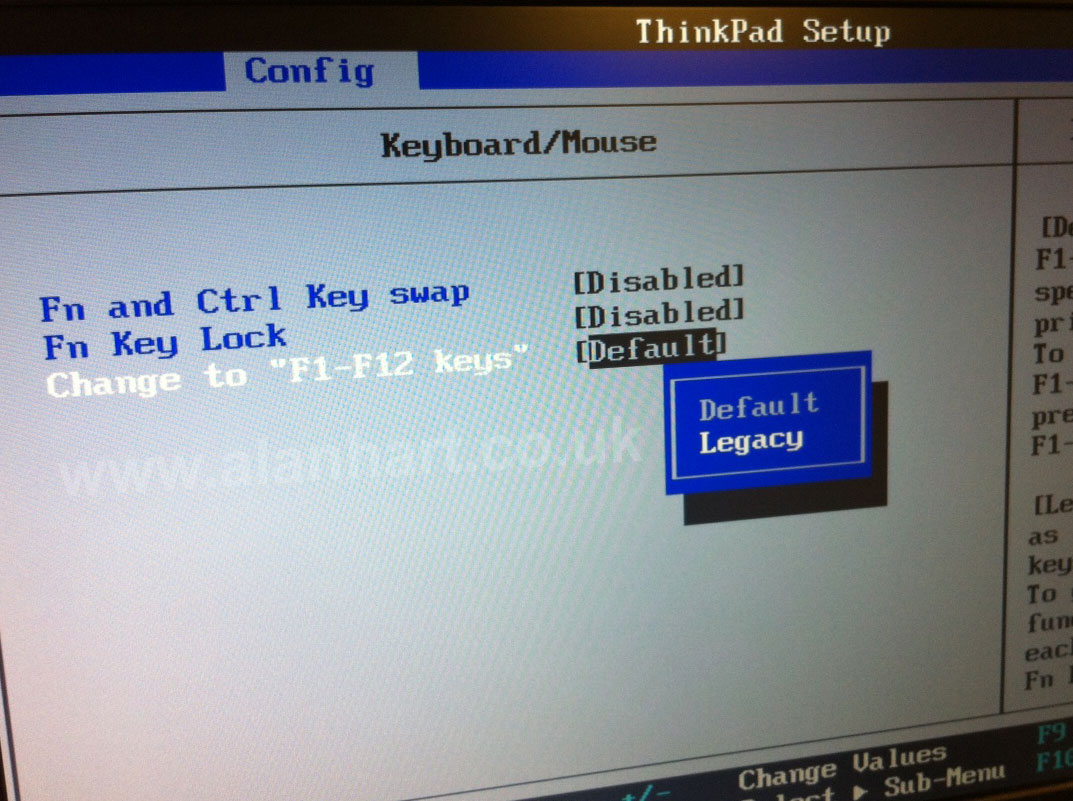
Change ThinkPad Edge Fn Keys Back to Normal Function Keys

Lenovo ThinkPad Edge Laptops come with standard F1-F12 function keys disabled by default here’s how to change them back to work as normal.

After racking my brains and google not coming up with anything i eventually tracked it down to the BIOS.

I did this on a ThinkPad Edge E520 i’m guessing other ThinkPad Edge Laptops may be the same?
(please comment or tweet me if this worked on a different model, so i can update this post)

  1. Restart or Turn on your ThinkPad Edge
  2. Tap the ENTER key repeatedly (NOT RETURN – this doesn’t work)
  3. tap F1 to go into the BIOS
  4. Tap the Right Cursor/Arrow key once to move to [CONFIG]
  5. Go down to [KEYBOARD / MOUSE] Hit Enter/Return
  6. Go to [Change to “F1-F12 keys”]
  7. Tap Enter/Return and choose [Legacy]
  8. Hold Down Fn+F10 to save & exit
  9. Choose [YES] (tap Enter/Return)
  10. That’s it! Yay! Your function keys are now back to normal!

Please comment or tweet me if this worked on a different model, so i can update this post

How to Stop Virgin Media Superhub Wireless Connection Dropping Out

You may have noticed that your Virgin Media SuperHub will sometimes drop out, maybe every 5-10 minutes! Or maybe your wireless is not working at all.

The problem could be that the software (called firmware) embedded in the Super Hub has problems when set above 802.11 B/G.

This is obviously rather annoying if you want to utilise more than 54mbps of your broadband connection over wi-fi.
This issue is not a virgin media service problem.
 
If you don’t mind being limited to lower speeds, You can set your Super Hub to work at 54Mbps in the 2.4GHz band. Doing this should resolve any of these annoying intermittent / dropping connection issues.

You can do this by visiting http://192.168.100.1 (or whatever the IP of your superhub is) and click “Advanced”.
 
Then click the Wireless Settings section and change 802.11 mode to “Up to 54Mbps” and 802.11N Band to “2.4GHz”.
 
The Security Mode will not make any difference to the overall performance.

Update: Vodafone Mobile Connect software blocking websites?

Update 26/10/2011:

(Here’s the original post)

I emailed Vodafone with pretty much the same text as in my first post, here is the copied & pasted response…

Hello Alan,

Alan, as per your confirmation I have deleted your online account. As you are facing problems with the handset it needs to be checked manually to find out the exact error in your phone. I would recommend you to visit the nearest store to check your phone manually once; if the problem is negligible then it can be fix it there and then. If the problem persists please get back to us with the confirmation for postal repairs.

To know about nearest store please click here

In order to arrange for a postal repair please get back to us with the following details:
1. Make and model of your phone:
2. Colour of the phone
3. IMEI number of the phone. You can get the IMEI number by dialling *#06# on your phone.
4. Brief description of the problem you are facing with your phone
5. Alternate contact number and alternate address

Also, if you have any data on your phone that you wish to back up (including contacts), please do so before you visit the post office. If you are not sure how to do this, you will find more information in the handbook. Once the phone has been posted it isn’t possible to retrieve information stored on the phone and it may be lost during the repair process.

Furthermore, water or physical damage is not covered by the manufacturer’s warranty and upon receipt if the repair centre discovers that your phone is damaged due to physical or water damage then we will be unable to repair your phone and will return it to you un-repaired or inform you about the charges for repair.

Alternatively, you can call our Technical team on 08700700191 then select option 2 and then option 2 again. They will be able to assist you regarding this matter. You can call them any time between 10:00 a.m. – 5:00 p.m.

I trust I was cordiale enough in providing you the information.

Kind regards,

Kanika Dham
Vodafone Customer Services

Thankfully my online account has not actually been deleted!

Received a tweet from @VodafoneUK this morning saying:

Ive asked one of the team to pick up your eForum post this morning and they’ll be in touch shortly ^SM

Hoping someone will get back to me with some kind of coherent response.

As an aside, i’ve tried hunting for the latest version of the vodafone connect software, i managed to stumble (after about 45 mins of looking) upon a download link (in the business section of the website) but when clicked the link was dead!

Access registry on another external hard drive

If you need to open a windows registry hive from an old/external/slave hard drive that has a windows installation on it.

I recently had a machine go down at work, wanted to get the user’s email up and running asap so i attached their hard dirve to my laptop using a usb to SATA adapter and exported their outlook account settings, which are stored in the registry and imported them into a new pc.
See my article: how to backup outlook 2007 account settings.

1. Open REGEDIT
2. single click to hightlight the HKEY_LOCAL_MACHINE branch.
3. in the menu click FILE and choose LOAD HIVE
4. browse to the location of the old registry hive.

where “x:\” is the drive of the slave/external hard drive…

“user” is located in x:\docs and Settings\user\NTUSER.DAT
make sure you open upper case “NTUSER.DAT” and not “ntuser.dat” if it exists.

other registry hives are located at x:\windows\system32\config

if you’re not sure or unclear on any of this, please comment and ask.